Convert PDF to HTML
Transform your PDF documents into interactive, responsive web pages. Preserve layout, images, and fonts while making your content SEO-friendly and accessible.

Transform your PDF documents into interactive, responsive web pages. Preserve layout, images, and fonts while making your content SEO-friendly and accessible.
Converting your PDF documents to HTML format is essential for web accessibility and responsiveness. Supatool makes this process seamless, allowing you to turn static documents into dynamic web content in just a few clicks.
Start by uploading your PDF file to the Supatool platform. You can drag and drop your file or select it from your computer. Our system supports batch processing, so you can upload multiple files at once if needed.
Choose how you want your HTML to be generated. You can opt to preserve the exact layout, which keeps the visual structure of your PDF intact, or choose a responsive flow that adapts the content for mobile screens.
Click the convert button. Supatool uses advanced OCR and formatting algorithms to extract images, text, and tables. Once converted, you can use our built-in editor to tweak the HTML, adjust styles, or add interactive elements like forms and links.
Finally, export your new HTML file or use the provided embed code to place it directly on your website. Your content is now SEO-friendly, searchable, and ready for the web.
Everything you need to turn PDFs into powerful web pages.
Don't lose the design integrity of your original document. Supatool meticulously analyzes your PDF to ensure that fonts, images, and layout structures are faithfully translated into HTML and CSS.
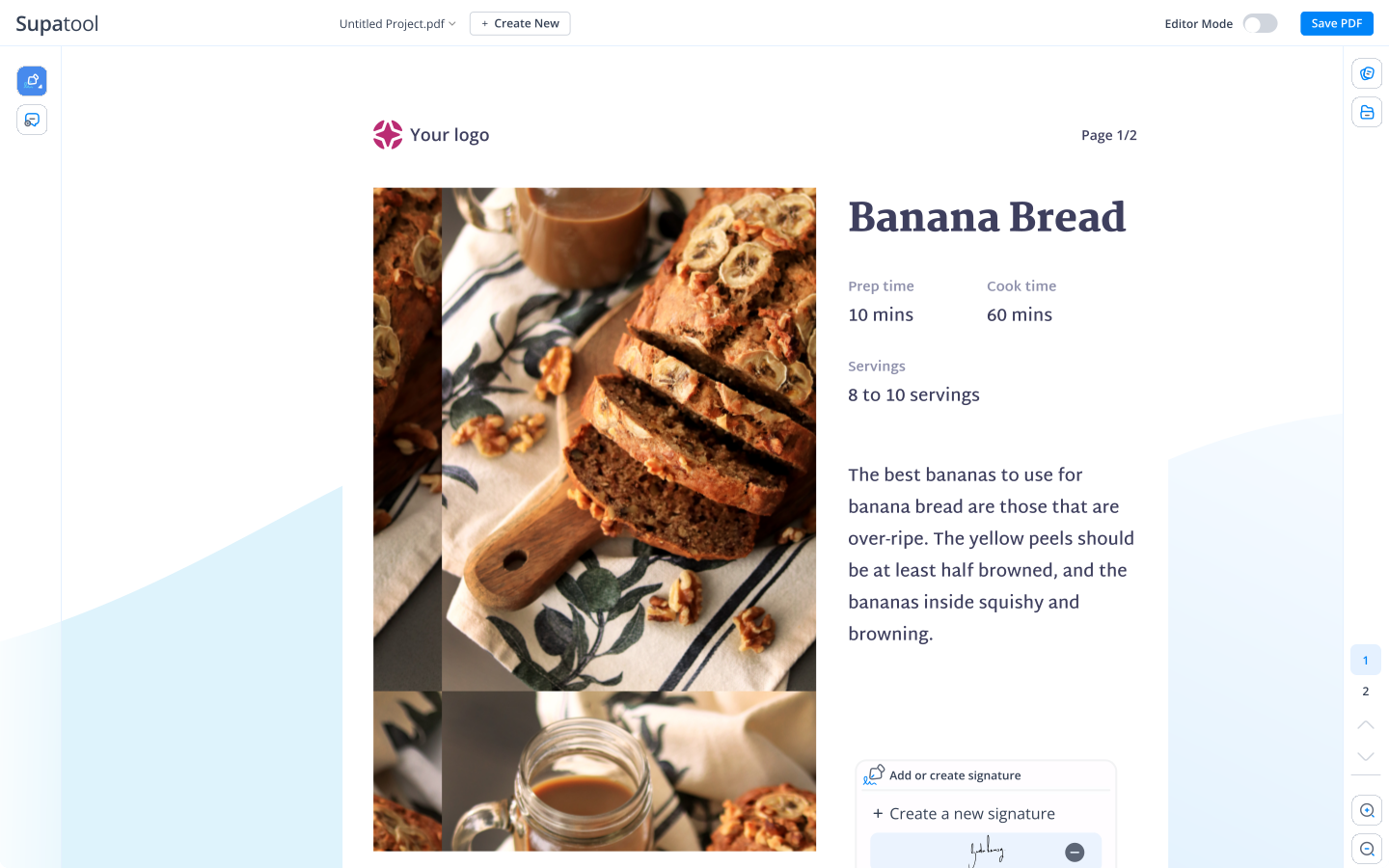
Static PDFs are hard to read on mobile. Our converter generates responsive HTML5 code that automatically adjusts to screen sizes, ensuring your content looks great on desktops, tablets, and smartphones.
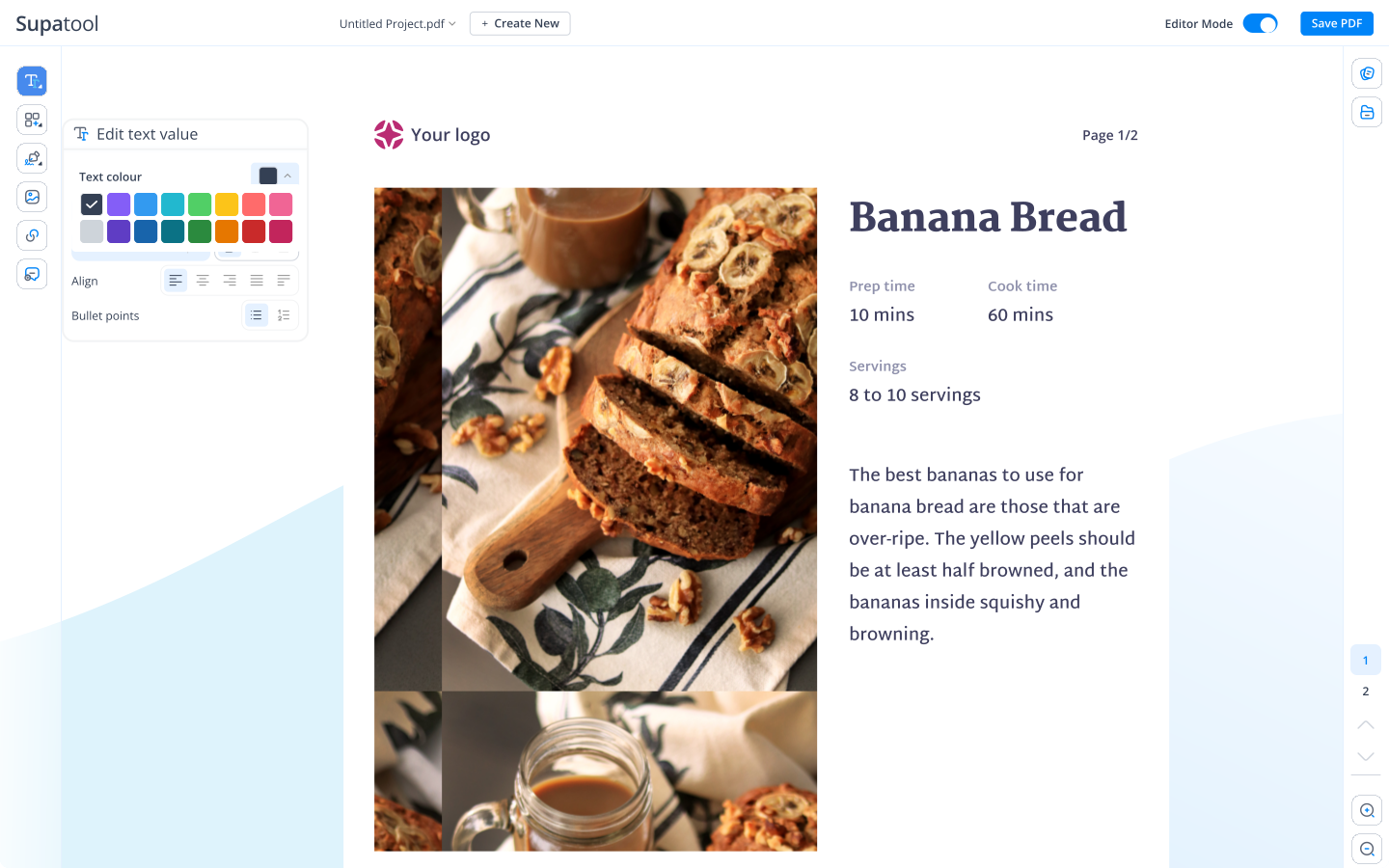
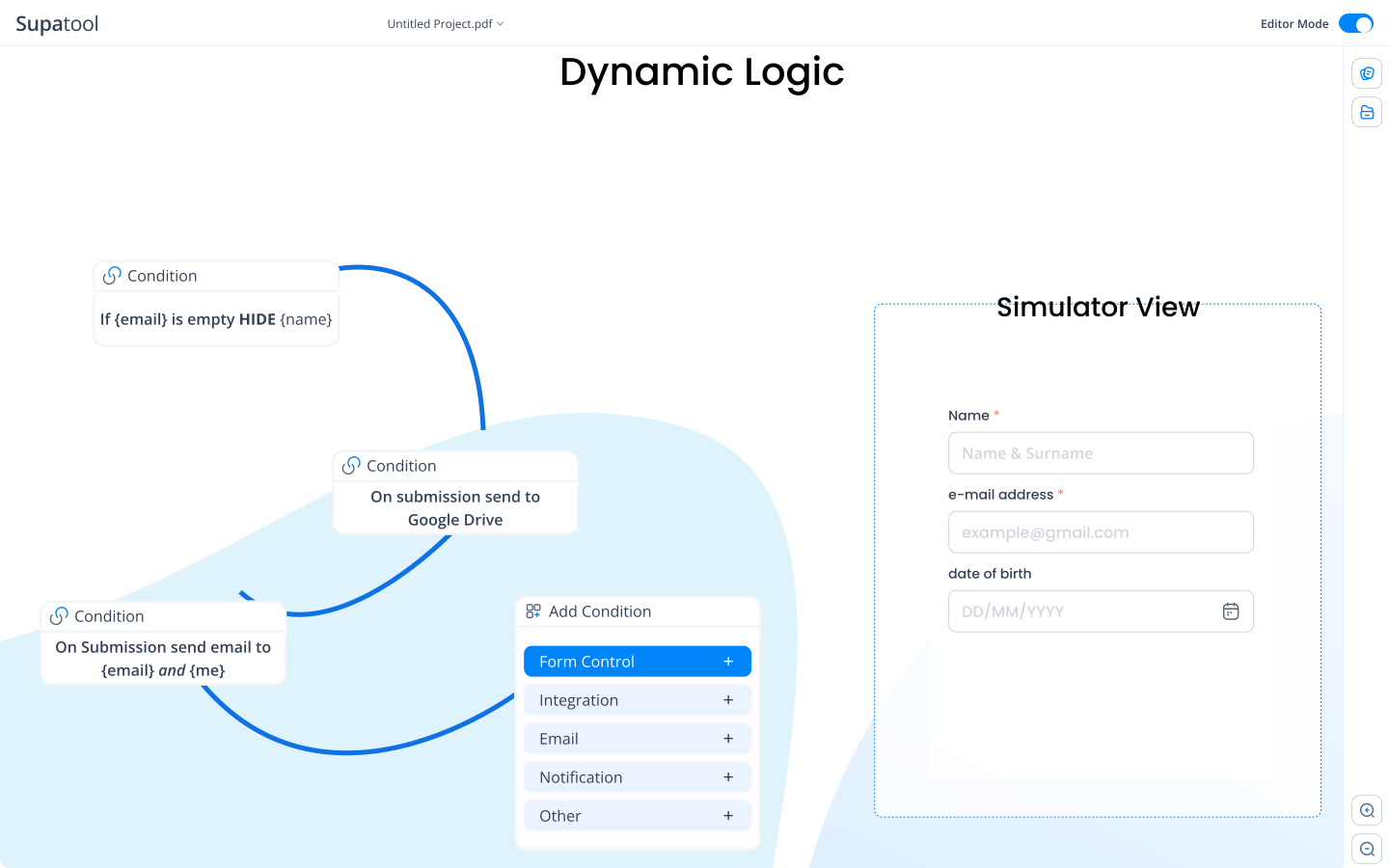
Turn static PDF forms into active HTML web forms. Supatool detects input fields, checkboxes, and radio buttons, converting them into functional HTML inputs that you can connect to your backend or data collection workflows.
Tables in PDFs can be messy. We intelligently recognize tabular data and convert it into clean HTML <table> elements with proper CSS styling, making your data accessible and easy to style.
PDF content is often trapped and hard for search engines to index properly. By converting to semantic HTML, you boost your SEO ranking for keywords like "pdf to html", "convert scanned pdf to html", and more.
Frequently asked questions
You can convert a PDF to HTML using Supatool by uploading your PDF document to our platform. Our tool automatically processes the file, preserving layouts, fonts, and images, and generates a clean, responsive HTML code that you can download or embed.
Supatool is an excellent choice for converting PDF to HTML because it handles complex layouts, forms, and tables with high accuracy. It produces semantic, SEO-friendly HTML5 code that works great on mobile devices.
While Chrome can view PDFs, it doesn't natively convert them to HTML code. You can use Supatool's online converter to transform your PDF into HTML, which you can then open in Chrome or any other browser.
Instead of just embedding a raw PDF file, converting it to HTML allows you to integrate the content directly into your webpage. Use Supatool to convert the PDF to HTML, then copy and paste the generated code into your website's source.
You can link to a PDF or embed it using an iframe, but for a better user experience, convert the PDF to HTML. This makes the content searchable, accessible, and responsive on all devices.
By converting your PDF to HTML with Supatool, you can host the resulting HTML page on your website, effectively turning your static PDF document into a live URL that can be shared and indexed by search engines.
Chrome might be treating a PDF as a web document for viewing purposes, but it's not changing the file format. To actually convert the file structure to HTML code for web use, you need a dedicated converter like Supatool.
If a PDF downloads as an HTML file, it might be a wrapper file or a misconfigured server header. However, if you want to intentionally convert PDF content to HTML format, Supatool provides a reliable way to do so.
Ready to transform your documents?